MINI PORTABLE SCANNER


MINI PORTABLE SCANNER
Product Specifications
@ Scan documents, photos, newspaper articles, magazine articles, letters, recipes, any reading materials and much more and save them on a microSD card
@ Fast and convenient way to share, archive and organize: scan your favorite recipes and email the to your friends, scan your important documents and archive them, or turn stacks of documents into organized digital files
@ Lightweight and portable, carry it with you anywhere
@ Very Compact, Handy & Portable Scanner
@ Built-in “Realtime” scanning detector to avoid any distortion
@ With built-in “Over-Speed” Alert to control the scanning speed
@ Powered by 2 pcs AA Batteries which can last for around 200 scanning pages
@ Very Easy & Perfect for Daily Use
@ Good to Scan any Books and Papers with size up to A4
@ Bundle with OCR sofeware,easy convert JPEG to WORD file
@ Contact Image Sensor:
300DPI – (Scanning width) 8.27”x (Scanning length) up to 50”
600DPI – (Scanning width) 8.27”x (Scanning length) up to 25”
@ Maximum scanning speed:
-High resolution with color ~13sec.
-High resolution monochromatic~6sec.
-Standard resolution with color~3sec.
-Standard resolution with monochromatic~2sec.
@ Image resolutions:
300 x 300 dpi for standard resolution
600 x 600 dpi for high resolution
@ Automatically powers off in 3 minutes when not in use
@ Scanning status LCD display
@ Automatic white balance
@ Supports microSD card up to 32GB
@ Uses 2X AA Alkaline batteries
@ Battery life:
- AA Alkaline batteries last at least 180 color scans or 200 monochromatic scans;
- 2000mAH rechargeable batteries last at least 250 color scans or 300 monochromatic scans
@ Dimension:10.0”(L) x1.2”(H) x 1.1”(W)
@ Weight: 7.47 oz. (with batteries)
System Requirement
Driver free to download for Windows 7 /Vista / XP and Mac OS10.4 or above,(direct plug-in, driver installation not required)
Accessories Included
User’s manual, USB cable, 2x AA Alkaline batteries, Software CD and Pouch
 

Best Bluetooth iPad Keyboard

Buy an iPad Keyboard
When using an iPad, not everyone likes to use a touchscreen keyboard, which is where a portable keyboard comes into play. They are portable, lightweight, and easy to set up. You can use a conventional keyboard with your iPad.
When shopping for an iPad keyboard, make sure that you look for wireless features and Bluetooth connectivity.
Below, you'll find different options for bluetooth wireless keyboards for the Apple iPad. These are great options for those of you who just prefer a physical keyboard versus the on-screen one. Personally, having a full keyboard is better because you'll run into fewer problems, in terms of typos and accidents when sending emails, writing notes, and planning your calendar.
The iPad keyboards are simple. You can purchase the portable Apple keyboard, or any one of the following options. You will find that bluetooth keyboards will range anywhere from $50 to $150.
 
iPad Keyboard Dock
The Apple iPad keyboard dock is great because you get the ulta-thin bluetooth keybaord with a dock. You can prop up your iPad for more comfortable viewing while you send emails and save notes. The keyboard is lightweight and definitely not an added pain to carry around with your iPad. The apple keyboard is similar to the portable keyboards that are available with the mini Mac computers. They're simple and easy to use.
 
Mini Slim RF Wireless Touchscreen Keypad
You can use this keyboard with your Ipad. This particular keyboard is built for lectures and projection. You can pull up the information on your iPad via this keyboard and have it show on a PC or other larger screen.
 
Go Stowaway Ultra-Slim Bluetooth Keyboard
The Stowaway Bluetooth keyboard is suitable for PDAs and other handhelds that have bluetooth support. There is about 18 mm spacing between each key. The design and portability is great for on the go usage. It's an alternative keyboard for your iPad. It's great for those people who don't particularly care for on-screen, touchscreen keyboards.
 
Freedom Pro Bluetooth Keyboard
This is a very portable keyboard that is great for various gadgets that have bluetooth support. There are 5 full rows with 75 keys. The keyboard allows you to program shortcuts, as well. This portable bluetooth keyboard folds out, has LED wireless connection light, power button, and has the capability to transmit a signal for about 30 feet.
 
Matias Bluetooth Folding Keyboard
This foldable bluetooth keyboard is compatible for Apple/Mac computers. It should be fully compatible with the new Ipad. The keyboard folds away for easy storage, and opens with a full size keyboard. This is a great option to use instead of an on-screen, touchscreen keyboard.
 
Apple Wireless Keyboard


This is the official Apple wireless keyboard. It uses bluetooth technology to connect to any Apple or Mac product. The keyboard is lightweight and thin, making it easy to transport. The keyboard doesn't create extra clutter on your desk, and you don't need a lot of room to set it up when you're on the go. This is one of the best options for an iPad keyboard that you can choose.


How to add more apps to the iPad Dock

Since iPad is the big brother of iPhone and iPod Touch, it brings many features that are already available on Apple’s popular mobile phone and media player. One of them happens to be the Dock which is a placeholder for your most frequently used app. By default, the Dock becomes filled with four apps. How about adding more apps to the Dock? Find the steps to do just that after the jump.

Add more apps to the iPad Dock

Move your focus to the app that you desire to add to the Dock.

Tap the desired app and hold it till all the app icons start to wiggle.

Once the app icons are all wiggling, drag your app down to the Dock and place it in a position such that it is hovering over the iPad.

While the app is hovering over the Dock, let go of the app.

Voila you just added your favorite app to the Dock.

It is worth noting here that the Dock can hold a maximum of 6 apps. But you always have the option to remove an app from the Dock in exchange for another app. The app removed from the Dock, is added to your home screen. For more iPad stuff, check our How to guide for iPad.

How to use Magic Mouse with iPad

Just now, we told you folks about the working possibility of using Magic Mouse with the iPad. Next up on the line as many of you would have expected is a how to guide that documents the steps needed to get just about any bluetooth enabled mouse working with the magical Apple Tablet. Steps listed after the jump.


How to use a bluetooth enabled mouse with the iPad

1.Jailbreak your iPad using Spirit by following the steps listed here, if you haven’t done it already.

2.Launch Cydia.

3.Search for BTstack Mouse app which is located under the BigBoss repository and Install.

4.Launch the app.

5.Let the app discover your bluetooth enabled mouse.

6.Once the discovery process is complete, connect your Bluetooth Mouse.

7.Voila, you just made your Bluetooth Mouse work with your lovely Apple Tablet.

For more iPad related stuff, check out our How to Guide for iPad which contains useful and interesting tips such as enabling voice control for the iPad, increasing the number of tabs that can be opened on Safari for iPad and so on.
Follow us on twitter and facebook to stay up-to-date with different technologies

around the globe.

Bluetooth Mouse wireless mouse 2.4g wireless mouse for ipad

Bluetooth mouse
EXCLUSIVELY FOR BLUETOOTH PCS
Features:
1, Using Bluetooth technology,10 meters distance usage.
2, Designed for notebook computers. Built-in Bluetooth adapter,low pointt of high- performance optical  navigation processor.
3, Entirely in accordance with Bluetooth 2.0&HID Profile V1.0 Fully support AFH hopping technology, high anti-interference ability.
4, Built-in memorry ,no need to replace the battery on the Code.
5, 2 AAA batteries ,recommended brand for more than 1000mAh battery.
6, Intelligent sleep management techniques,life for up to 5 months.(Suggest to turn off power swith if  there is a long time not to use the mouse)

7, 1 year quality guaranteed .
Notbook Computer of configuration requirements:
1, Computer 200MH GHz or above.
2, 64M or more memory .
3, The need for built-in orr extemal Bletooth adapter

4, Windows 2000/xp/2003/VISTA operating system

Operating Instruction:

1,Confirm the bluetooth device of operating computer has been opened.

2, Open the battery cover then install the batteries.

3,Turn on the power supply switch ,holding the CONNECT key for 2 seconds, then the mouse will be in matching state.

4, select "Add"in the Bluetooth message box,Refer to below screenshot indicated .

5, Mark a "√" in the windown message box ,then click"next"to search.

6, Bluetooth mouse is on the screen ,select "Device"and then click "next"to match.

7, Select "Non-password"while in matching state after then function is activated .The code will not be replaced while computer is power off or while batteries are installed.

2.4G Multifunction wireless mouse


User Manual of 2.4G Multifunction wireless mouse
2.4G Multifunction wireless mouse is a new type of electronic product designed for computers and multimedia software, it can achieve flip effect by simply pressing the mouse's side buttons as well as the traditional mouse functions. And it is easy to conduct the page turing of electronic documents and to access into e-files by wireless remote control the computer or multimedia projector. While you are in leisure time listening to the music, just press mode switch of mouse to enter the multimedia control mode, system can remote control the default multimedia software to implement these features like sound volume adjustment, pause, play, previous track, next track easily.
Product Specifications:

1, Using ergonomic design which is suitable for prolonged use. A beautiful small and space-saving receiver is easy to be placed inside the mouse to prevent accidentally lost out.

2, Adopting the most advanced RF radio design, micro-power transmission. No harm, it is green, health and real environmental protection.

3, With standard 5 keys operation plus CPI switching function. (The default setting is 1000, can cycle through 1600.)

4, Holding CPI conversion button for three seconds enter to multimedia mode, the system automatically opens the default media player software, access to multimedia mode. Conversion can be done between traditional mode and multimedia mode. For more details, please refer to below function conversion table.
Key
Traditional Mode
Multimedia Mode
L-key
L-key
L-key
M-key
M-key
Play/Pause
R-key
R-key
R-key
Up
Up
V+
Down
Down
V-
N-key
Forward
Next track
P-key
Backward
Previous track
CPI
CPI conversion/ Traditional mode
Traditional mode conversion/ Multimedia mode conversion
4, Built in energy-saving 3204 power IC, rated working Current is > = 14 mA.

5, Operation distance is 10 meters.

6, support for operating systems such as Windows 98/ME/2000/XP/vista

7, using two AAA batteries.

Notes:

1, When you are on moving, please place the receiver within a specified location on the mouse to prevent loss.

2, Please turn off the power and remove the batteries if a long time no use.

3, Battery life and operating range will be slightly different depends on different environments.

4, Please deal with the used batteries in environmental protection way

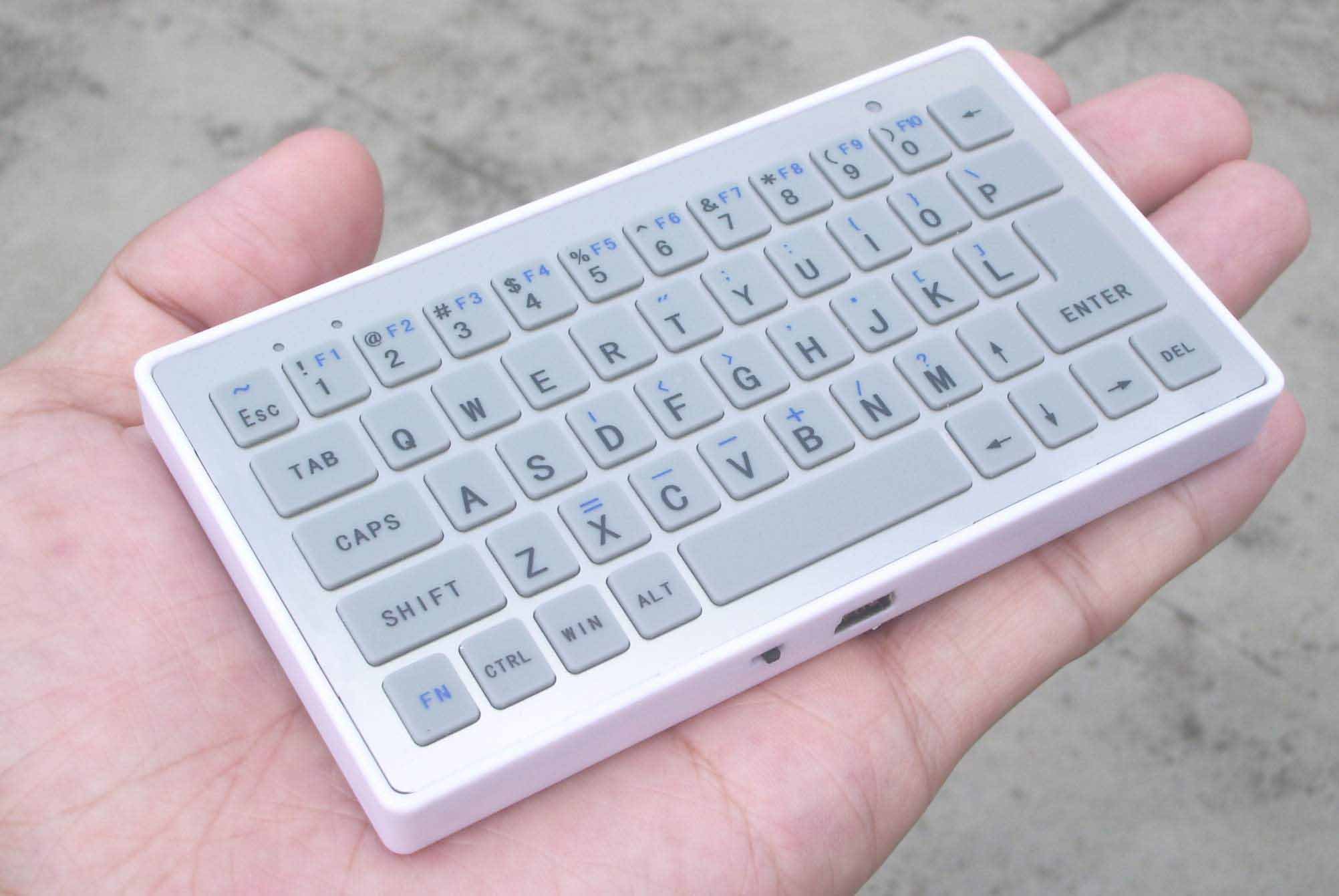
bluetooth keyboard for IPAD


This bluetooth keyboard have lithium battery inside, you won’t have the trouble to change battery. Once the keyboard was charged, this keyboard can standby for over 2 months.

This bluetooth keyboard specially designed for smart phone, a small bluetooth keyboard can be set in pocket.
This bluetooth keyboard can work with Nokia smart phone that work with Symbian S60V2 S60V3,and even S60v5. Also can work with Windows Mobile 5 or above version , like Windows Mobile 6.
After jailbroke, and down program BTstack keyboard(this will cost $5), this keyboard can work with IPHONE 2G & 3GS.
And this keyboard can work with Windows 98 SE or above version , PC mother board with bluetooth receiver, and also APPLE MAC os with bluetooth receiver.
This bluetooth mainly designed for at the present time touch screen smart phone, because touch screen smart phone without a real keyboard ,it is discommodiousness for typing letter through virtual keyboard.
When you install this bluetooth keyboard, you can type letters, numbers, symbols quickly like you are typing them on you PC.


Character:
MODEL: TE-382
Operate Freq: 2.4GHz
Bluetooth version: 2.0
Operate current: less than 2mA
Stand by current: less than 1.2mA
Sleep current: less than: 0.2mA
Operate Range: over 10 meters
Storage temperature: -40 celsius degree ~ +125 celsius degree
Dimension: 113mm(L) X 62.3mm(W) X12.3mm(H)
Net weight: 67.5+-2 grams
Gross weight: 138 gramss
package size:189X125X22mm
This product can operate with the following smart phone thar work with Symbian system:
For SymbianS60V2:
Model list: Nokia 6260, 6630, N70, N72, 7610, 6670, 3230, 6680, 6681, 7710 and N90 etc.
Take dirver Symbian _ S60_ 2nd.sis
For SymbianS60V3:
Model list: Nokia 3250,5500, 6210, E50, E51,E60, E61,E61i, E65, E70, N71, N73, N77, N80, N80 Internet Edition, N91, N93,N92and N93i etc.
Take driverSymbian _ S60_1_30.sis.
For SymbianS60V3.1:
Model list: Nokia N76, N77, N81, N82, N95, E63, E71, E66, E90, 5700 XpressMusic, 6110 Navigator, 6120 classic and 6290 SAMSUNGG810, G818, 400, i408, i450, i458, i550, i558, i560, i568, i8510, L870, L878 etc.

Take driver Symbian _S60_31.sis.
For SymbianS60V3.2:
Model list: Nokia5630,N78,N79, N86, N85,N96,E52, E72, E75, 6730C,6720C,5730XM,5630XM, 6210 Navigator, 6220 classic, 5320 XpressMusic and 6650 etc.
Take driver Symbian _S60_32.sis.
All the above driver were contain in the attach disk.